Handling Player Input
Input Actions let you read what the player is doing without hard-coding specific keys. You set up the actions in the Input Manager, then read them in your ClientScripts.
Note: Input can only be read in ClientScripts. ServerScripts cannot access player input directly.
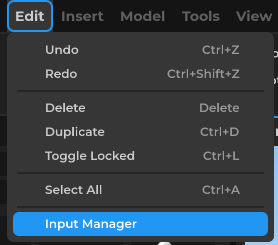
Open the Input Manager from the Edit menu:
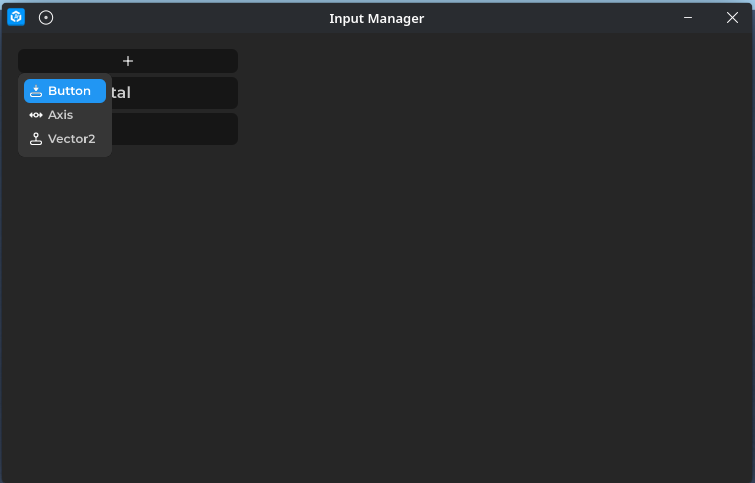
Click the + button and choose the action type you need (Button, Axis, or Vector2):
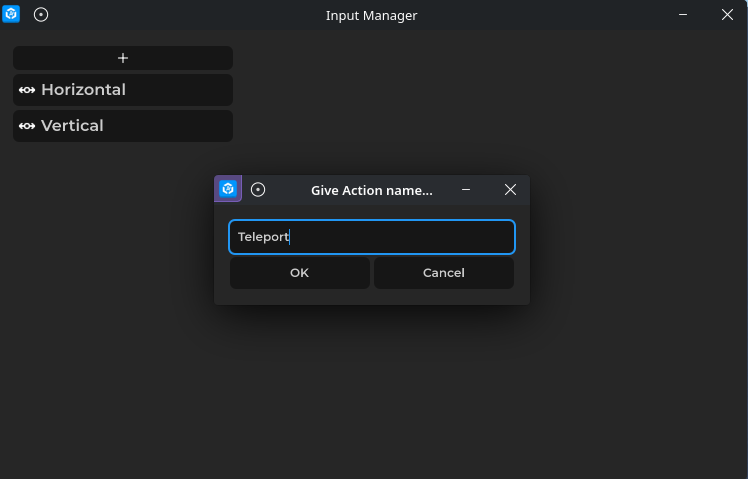
Give your action a name:
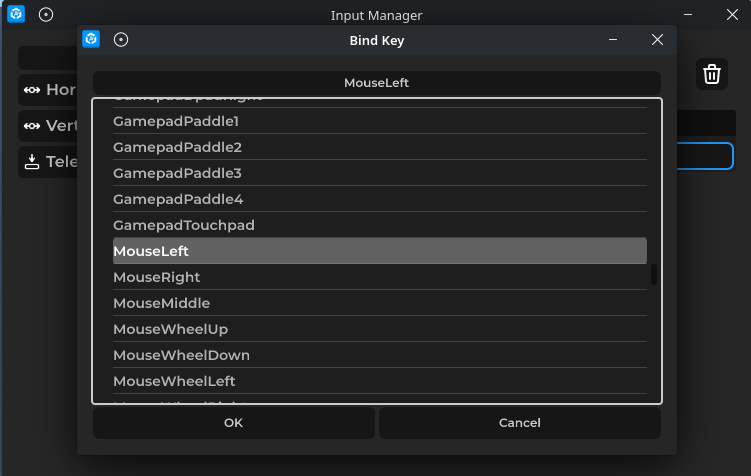
Bind it to a key or input:
Your finished action will appear in the list:
Reading a Button
Say you created a Button action named "Interact". Here's how to check if it's held down:
-- ClientScript
function _Update()
    if Input:GetButton("Interact").IsPressed then
        print("Holding Interact!")
    end
end
Fire Once Instead of Every Frame
Checking inside _Update runs every single frame while the key is held. If you only want something to happen once — like toggling a flashlight or opening a door — use the Pressed event instead:
local interact = Input:GetButton("Interact")

interact.Pressed:Connect(function()
    print("Interacted!")
end)
There's also Released if you need to know when the player lets go.
Mini Project: Click to Teleport
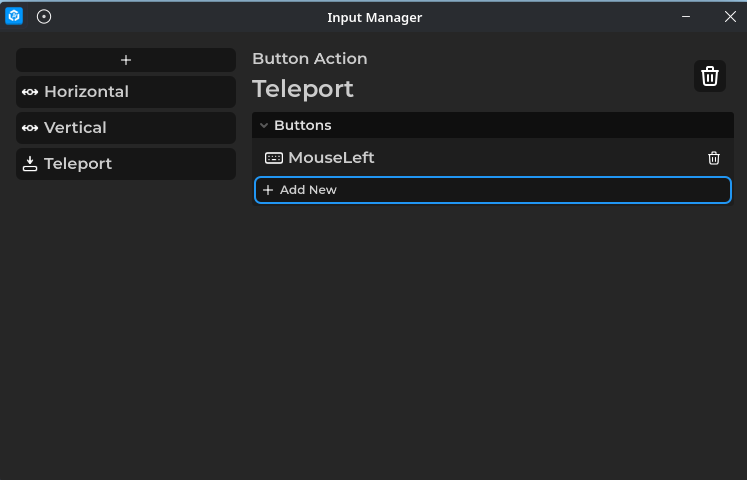
Create a Button action named "Teleport" and bind it to Mouse Left in the Input Manager. Then drop this into a ClientScript:
local player = Players.LocalPlayer
local teleport = Input:GetButton("Teleport")

teleport.Pressed:Connect(function()
    local target = Input:GetMouseWorldPosition()
    if not target then
        return
    end

    -- Teleport the player 2 units above the clicked point so they dont get stuck
    target = target + Vector3.New(0, 2, 0)
    player.Position = target
end)
Run the game and left-click anywhere. Your character will jump to that spot.
Note: For security reasons, its recommended to handle this kind of thing using server scripts. Client-Server Communication.