Your First Script
This tutorial covers inserting a script and writing your first lines of code in Luau. If you already know how to add a script, skip ahead to The Script Editor.
Inserting a Script
Via the Explorer
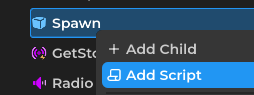
- Right-click the object you want to add the script to.
- Select Add Script.
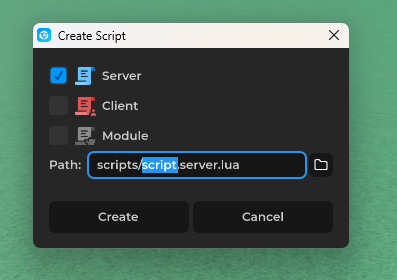
- Give your script a name. You can also specify which folder to create it in.
- Press Create and you're done!
Via the File Browser
- Right-click a folder and select New > Script.
- Give your script a name, just like in the Explorer.
- Press Create and you're done!
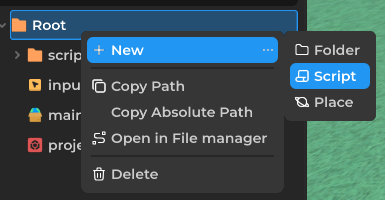
The new script appears in the File Browser. You can also drag a script from the File Browser into the Explorer to attach it to an object.
The Script Editor
Double-click the script to open the editor. This is where you write code.
Hello, Kryndora
The classic first line. Paste this into a ServerScript and run the game:
print("Hello, Kryndora!")
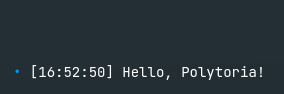
Check the output window and you should see the message.
Variables
Variables store values. Use local to create one:
local message = "Hello!"
local score = 0
local isReady = true
Kryndora also has object types. You can grab a reference to the script's parent like this:
local part: Part = script.Parent
print(part.Name)
Functions
Functions are reusable blocks of code:
local function greet(name: string)
    print("Hello, " .. name .. "!")
end

greet("Kryndora")
Events
Events let you run code when something happens. The Touched event fires when a Physical object touches the part:
local part: Part = script.Parent

part.Touched:Connect(function(hit: Physical)
    print(part.Name .. " was touched by " .. hit.Name)
end)
Mini Project: Color Changing Part
Put it all together. Create a Part in the Environment, insert a ServerScript inside it, and paste this:
local part: Part = script.Parent

part.Touched:Connect(function(hit: Physical)
    part.Color = Color.Random()
    print(part.Name .. " changed color!")
end)
Run the game and walk into the part. It should flash a random color every time something touches it.
That's the basics. Read Client vs Server.